Learning how to add M3U playlist on Firestick is straightforward when you already have an authorized playlist URL and a reputable player. The safest method uses an app from the Amazon Appstore and keeps the private playlist address off unknown websites.
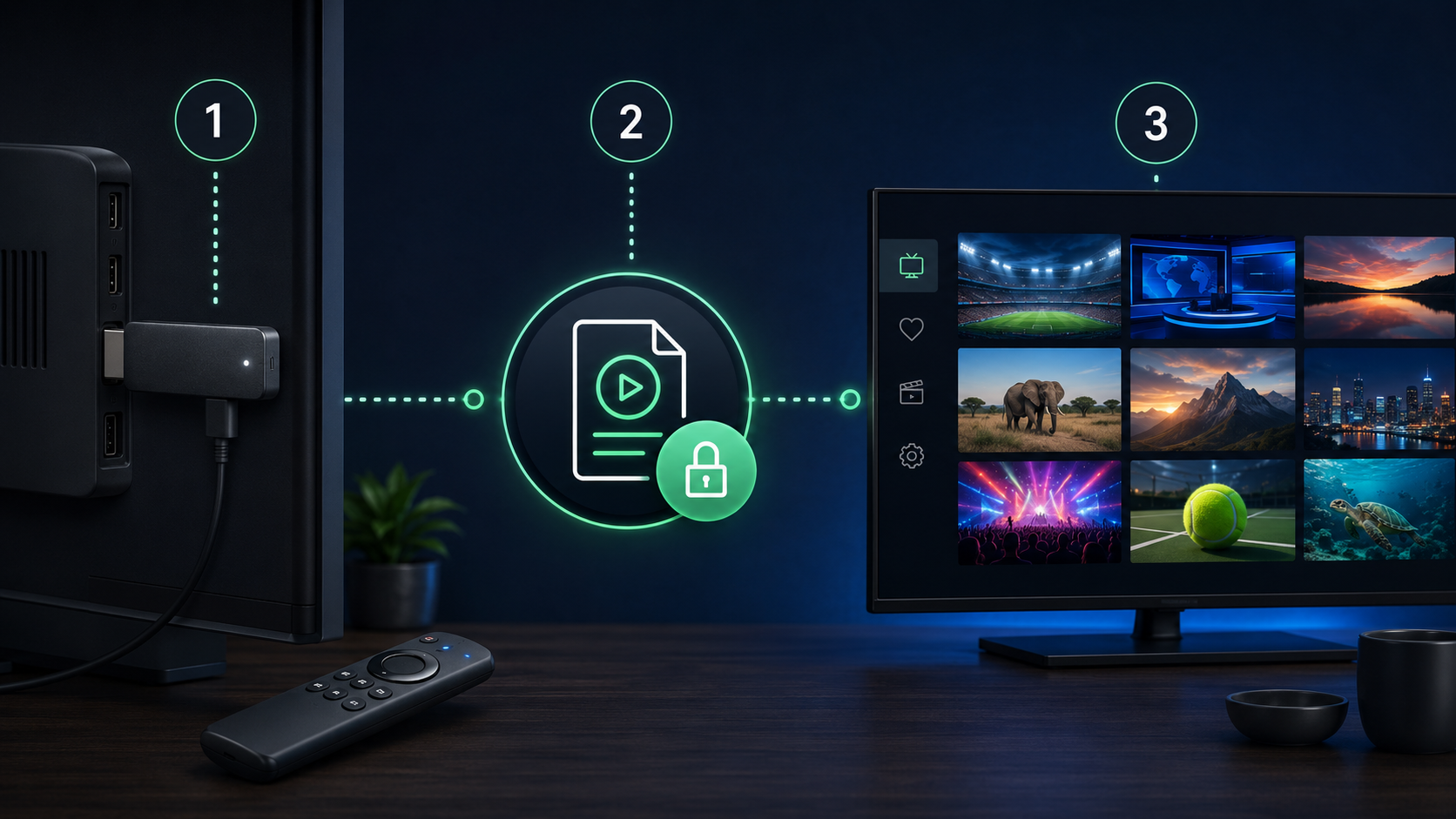
Install a trusted M3U-compatible player from the Amazon Appstore, open Add Playlist, choose M3U URL, enter the authorized link exactly, give the playlist a name and save. The wording changes between apps, but the workflow is usually the same.
Before You Add an M3U Playlist to Firestick
An M3U playlist is a text list of media locations. It does not contain video by itself. A compatible player reads each entry and requests the stream from the address in the list.
Before following this how to add M3U playlist on Firestick guide, you need three things:
A legitimate playlist
Use only an M3U URL or file you are authorized to access.
A compatible player
Choose a reputable Fire TV app that explicitly supports M3U playlists.
A stable connection
Make sure the Firestick is online and has a strong Wi-Fi or Ethernet path.
Many provider links contain account identifiers. Do not post the URL publicly, send screenshots containing it or paste it into random online “playlist checker” sites.
If your provider gave you a username, password and server URL instead of one M3U link, the player may offer a different sign-in method. This article focuses specifically on M3U URL or M3U file import.
How to Add M3U Playlist on Firestick: Step by Step
Open the Amazon Appstore
From the Fire TV home screen, use Find or Search and look for a reputable player that states it supports M3U. Amazon confirms that Fire TV uses the Amazon Appstore rather than Google Play.
Install and open the player
Select the official app listing, review the developer and permissions, install it, then open it from your Apps library. Avoid look-alike listings or links sent by strangers.
Find Add Playlist
Look for a menu labeled Add Playlist, New Playlist, Playlists, Load Playlist or similar. Choose the option for M3U URL, Remote Playlist or Network Playlist.
Enter the authorized M3U URL
Type or paste the complete address. Check the beginning, slashes, punctuation and final characters. One missing symbol can make the playlist fail.
Name and save the playlist
Use a simple private name such as Home TV. Select Save, Add or Continue and wait while the player downloads and organizes the entries.
Open a permitted channel
Start with one known item. If it plays, test channel switching, audio, resolution and guide data before changing advanced settings.
The first load can take longer when a playlist has many entries. Do not repeatedly press Save; wait for the app to finish or display a clear error.
How to Add an EPG to the Playlist
An electronic program guide usually comes from a separate XMLTV or EPG URL. Some players detect it automatically from the playlist; others show an EPG field in the playlist settings.
If guide times are shifted, check the player’s time-zone or EPG offset setting before editing the playlist itself. A one-hour difference can also appear around daylight-saving changes.
M3U Playlist Not Working on Firestick: Fast Fixes
| Problem | Likely cause | What to try |
|---|---|---|
| Invalid URL | Typing error, expired link or extra space | Re-enter the full address and ask the provider to confirm it |
| Playlist is empty | Inactive source, unsupported format or expired access | Refresh, restart the app and verify the source |
| Channels buffer | Weak Wi-Fi, congestion, source instability or high resolution | Test near the router, use Ethernet and compare another permitted stream |
| Guide is missing | No EPG URL, failed download or unmatched channel IDs | Add the correct guide source and refresh it |
| App closes or freezes | Low storage, corrupted cache or outdated app | Restart Fire TV, clear cache and update the app |
| Only some streams open | Source-specific outage, codec or rights restriction | Ask the provider and try another supported player |
Change one variable at a time. If you replace the player, network and playlist simultaneously, you will not know which change fixed the problem.
Safe and Legal M3U Use on Firestick
The M3U format is neutral and legal. The content source determines whether access is authorized. Use playlists you created yourself, public streams that permit access or links supplied by a legitimate service.
For most viewers learning how to add M3U playlist on Firestick, an Appstore player is the safer first choice. Sideloading means installing software outside the store. It increases responsibility for verifying the developer, download source, update process and permissions.
The FTC warns that illegal streaming apps can carry malware capable of stealing payment details and login credentials. Do not install unknown files merely because a video promises “free premium channels.”
Avoid players that request contacts, microphone, precise location or unrelated account access without a clear reason. Keep the Fire TV software and player updated.
How to Manage or Remove the Player
If the player becomes slow, open Fire TV Settings, go to Applications and then Manage Installed Applications. Amazon’s official documentation uses this path to launch, clear or uninstall Fire TV apps.
Force stop an app that is stuck, then reopen it.
Clear cache when temporary data becomes corrupted.
Clear data only if you are prepared to re-enter playlists and settings.
Uninstall players you no longer trust or use.
If the playlist itself has expired, clearing the app will not renew it. Contact the authorized source instead of repeatedly reinstalling software.
Optimize the Playlist After It Loads
Once you know how to add M3U playlist on Firestick, spend a few minutes making the player easier to use. Optimization should improve navigation without exposing the private playlist URL or changing settings you do not understand.
Create favorites
Mark only the channels you actually use. A short favorites group loads and navigates faster than searching a very large list.
Hide unused groups
If the player supports visibility controls, hide regions or categories your household never watches.
Choose a safe default
Start on the playlist or favorites screen instead of automatically opening an unknown stream.
Set reasonable buffering
Use the player’s default first. Increase the buffer only after confirming that Wi-Fi and the source are stable.
How to diagnose buffering correctly
Buffering does not automatically mean the Firestick is faulty. First open another authorized stream in the same playlist. Then test the Fire TV near the router or with Ethernet if your model and adapter support it. Restart the router and Fire TV, and check whether other household devices are downloading or uploading heavily.
If every stream fails on one player but works in another trusted player, the issue may be app compatibility or a decoder setting. If one channel fails everywhere, the source is more likely responsible. If all video services struggle on the Fire TV, investigate the network, storage and device software before editing the M3U URL.
An M3U link can contain an account identifier or token. Do not publish screenshots that reveal it, paste it into public URL checkers or send it to strangers offering remote setup.
Back up only what you can protect
Some players can export settings or synchronize favorites. Use that feature only with an account and storage location you trust. Otherwise, keep the original authorized URL in a password manager and record the player name, EPG address and any time-zone offset. That small setup note makes recovery easier after clearing app data or replacing the device.
When a provider changes the playlist link, edit or replace the saved source instead of adding many duplicates. Remove expired playlists so children or other users do not open confusing copies.
A good IPTV playlist setup therefore has three parts: a trusted Firestick M3U player, an authorized address and a protected backup. If you search for an M3U playlist Firestick tutorial or instructions to add IPTV playlist to Firestick, verify that it uses the official app listing and never exposes the M3U URL Fire TV credentials in a public form.
Need a Playlist to Test on Firestick?
Use a short trial to check the player, channel loading and connection before choosing a paid plan.
If the playlist loads but the schedule stays empty, the fix lives in our guide to IPTV EPG setup on Firestick, which covers the XMLTV link, channel ids and the time zone trap.
How to Add M3U Playlist on Firestick FAQ
How do I add an M3U playlist on Firestick?
Install a reputable M3U-compatible player from the Amazon Appstore, open its playlist section, choose the M3U URL option, enter the authorized playlist address, name it and save. Menu labels vary by player.
What is an M3U playlist?
An M3U playlist is a text-based list of media locations. In IPTV use, it can point a compatible player to live channels or on-demand streams supplied by an authorized service.
Do I need to sideload an app to use M3U on Firestick?
Not necessarily. The safer first choice is a reputable compatible player available through the Amazon Appstore. Sideload only when you understand and trust the source.
Why does my M3U playlist say invalid URL?
The address may be incomplete, expired, copied with an extra space, blocked by the provider or temporarily unavailable. Re-enter it carefully and ask the authorized provider to confirm it.
Why is the playlist empty after loading?
The source may contain no active items, the service may be offline, the player may not support the format or the account may have expired. Test the URL with the provider and restart the app.
Can I add an EPG to a Firestick playlist?
Many players support a separate XMLTV or EPG URL. Add only the guide address supplied by the same legitimate provider and confirm the time-zone setting.
Is using an M3U playlist legal?
The format itself is legal. Legality depends on whether you are authorized to access and stream the content referenced by the playlist.
Is it safe to type my M3U URL into any app?
No. Playlist URLs may contain account identifiers. Use a reputable player, avoid screenshots or public sharing, and do not enter the URL into unknown websites or apps.
Use this checklist whenever you explain how to add M3U playlist on Firestick to another household member: trusted player, authorized URL, correct EPG and protected credentials.
The safest answer to how to add M3U playlist on Firestick is to begin with the Amazon Appstore and change one setting at a time.
After learning how to add M3U playlist on Firestick, keep the private link in a password manager instead of screenshots or public notes.
Finally, verify how to add M3U playlist on Firestick again after major app or Fire TV updates because menu labels can change.