IPTV EPG setup on Firestick comes down to one question: does your player pull the guide from an Xtream Codes login, or do you have to paste an XMLTV link in yourself? Answer that first and the TV guide usually fills itself in. Skip it and you end up staring at a channel list with no program names, which is the complaint we get on WhatsApp more than any other.
The other half of the IPTV EPG setup on Firestick is the stick itself. Fire OS controls the clock, the cache and how much memory your player gets, and all three can break a guide that is otherwise working fine. What follows is the setup in the order that works, then the fixes for a guide that stays empty.
Quick Answer: IPTV EPG setup on Firestick goes one of two ways. If you log in with Xtream Codes, the EPG loads automatically with your channels. If you use an M3U playlist, paste your provider’s XMLTV URL into the app’s EPG settings, then force a refresh and wait a few minutes. Set the Firestick time zone correctly, or every program shows at the wrong hour.
- What an EPG is and why the guide comes up empty
- What to check before you start
- IPTV EPG setup on Firestick, step by step
- Where the EPG URL goes in TiViMate and Smarters
- Blank guide and wrong times: the fix table
- Keeping the guide fast on a small stick
- When the guide still refuses to load
- Quick answers to common questions
What is an EPG, and why is your Firestick guide empty?
An EPG, or electronic program guide, is the TV schedule your player draws over your channel list: show titles, start and end times, short descriptions. IPTV services ship it as an XMLTV file. Your guide sits empty when no EPG source is assigned, when the file has not finished downloading, or when the channel IDs do not match.
XMLTV is a plain text format older than most of the apps that read it, and every entry in it carries a channel id. Providers hand it over as a .xml file or, more often now, a compressed .xml.gz, because several days of schedules for a large channel list is a heavy download for a streaming stick.
That id is the part people never think about. Your playlist labels a channel with a tvg-id, the guide file labels the same channel with its own id, and the player matches them. When one side writes ESPNUSA and the other writes ESPN.us, that channel shows no information while every channel around it looks fine.
- What is on now and what follows, without flipping through channels
- Catch-up and recording, in the players that support them, since both read guide data
- Channel logos, which most apps pull from the same file
- A grid you can scroll before kick-off instead of guessing at channel numbers
What do you need before the IPTV EPG setup on Firestick?
Four things: your subscription details, the login type behind them, a Fire TV that can run the player you want, and the right time zone on the device. If your provider sent a server URL with a username and password, that is Xtream Codes and the guide travels with it. A single long M3U link needs a separate XMLTV URL.
Check the stick before you install anything. Open Settings, then My Fire TV, then About. If the software version reads Fire OS 7 or Fire OS 8, you can sideload players such as TiViMate. If it reads Vega OS, you cannot. Amazon moved to its own Linux based system with the Fire TV Stick 4K Select in late 2025 and the 2026 Fire TV Stick HD, and those models install only what the Amazon Appstore offers. There is no Downloader app on those sticks and no way around it. The Fire TV Stick 4K Max still runs Fire OS.
This trips up more people than any setting does, because two sticks with the same name on the box behave differently. If you have not installed a player yet, start with our Firestick IPTV walkthrough and come back here for the guide data.
How do you set up the EPG on Firestick step by step?
The IPTV EPG setup on Firestick takes six moves. Install your player, sign in, then either let an Xtream Codes login pull the guide or paste the XMLTV URL into the app’s EPG settings. Fix the time zone before you judge the result, force one refresh, and give the first download several minutes before you decide it has failed.
- Identify your Fire TVSettings, My Fire TV, About. Fire OS means sideloaded players are available. Vega OS means Appstore players only, so pick the app before you plan the rest.
- Confirm the login typeA server URL plus username and password is Xtream Codes. A single link ending in .m3u or .m3u8 is a playlist, and it needs its own guide link.
- Add the EPG sourceWith Xtream Codes there is nothing to add. With M3U, paste the XMLTV URL exactly as your provider sent it, including http or https, and check there is no stray space at the end.
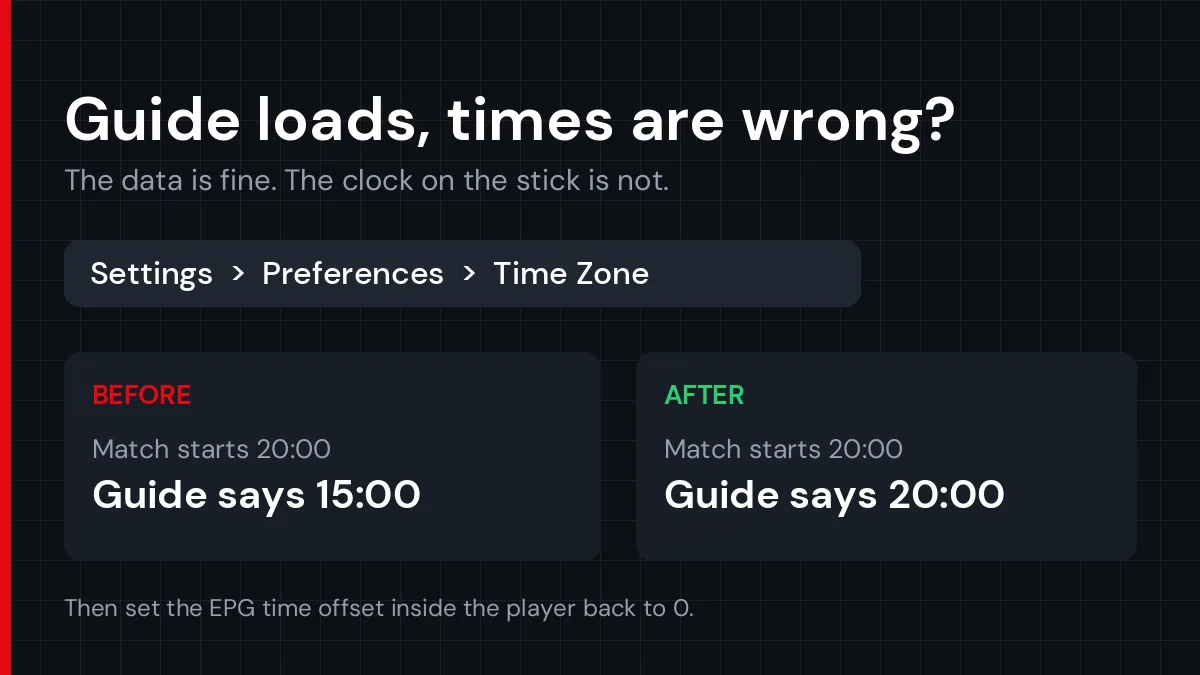
- Set the time zoneSettings, Preferences, Time Zone, then choose your region and zone. Do this before the first refresh so the guide is built against the right clock.
- Force the first downloadTrigger the update in the app, then leave it alone. Several days of schedules for a big package takes minutes, not seconds, and hammering refresh restarts the job.
- Spot check the gridOpen three channels from different parts of the list. If two have programs and one says no information, that is an id mismatch on that channel, not a broken EPG.
Where do you enter the EPG URL in TiViMate and IPTV Smarters?
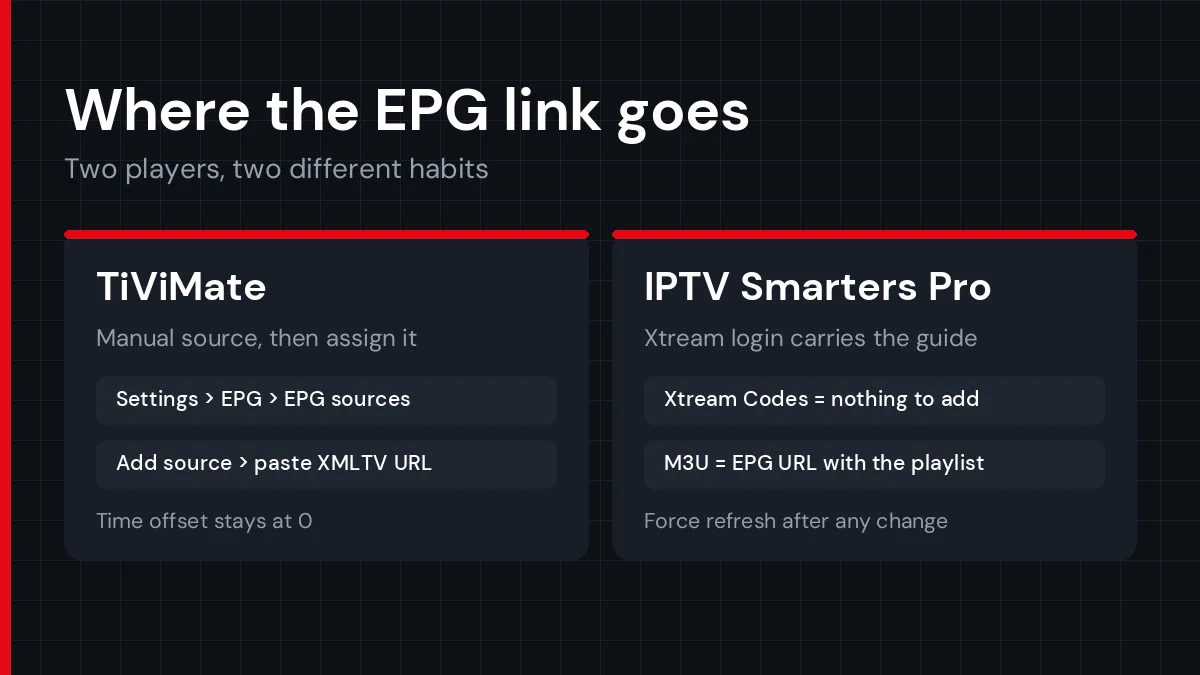
In TiViMate, open Settings, EPG, EPG sources, add your XMLTV URL and assign it to your playlist. In IPTV Smarters Pro, an Xtream Codes login loads the guide on its own; with an M3U playlist you add the EPG URL alongside the playlist and use the app’s refresh option. Menu wording shifts between app versions.
TiViMate
Add the source under Settings, EPG, EPG sources, then make sure it shows as assigned to the playlist you are actually watching. Two playlists with one assigned source is a common reason half the channels look bare. TiViMate also keeps a time offset in the same menu; leave it at 0 unless the whole grid is shifted after the device clock is already correct.
IPTV Smarters Pro
Smarters treats the guide as part of the account. Log in with the Xtream Codes credentials your provider issued and the schedule arrives with the channel list, no extra link needed. On an M3U profile the EPG URL sits with the playlist details, and the app has its own refresh and cache options separate from Fire OS. Our IPTV Smarters Pro setup guide covers the rest of the app.
Why is the guide still blank or showing the wrong times?
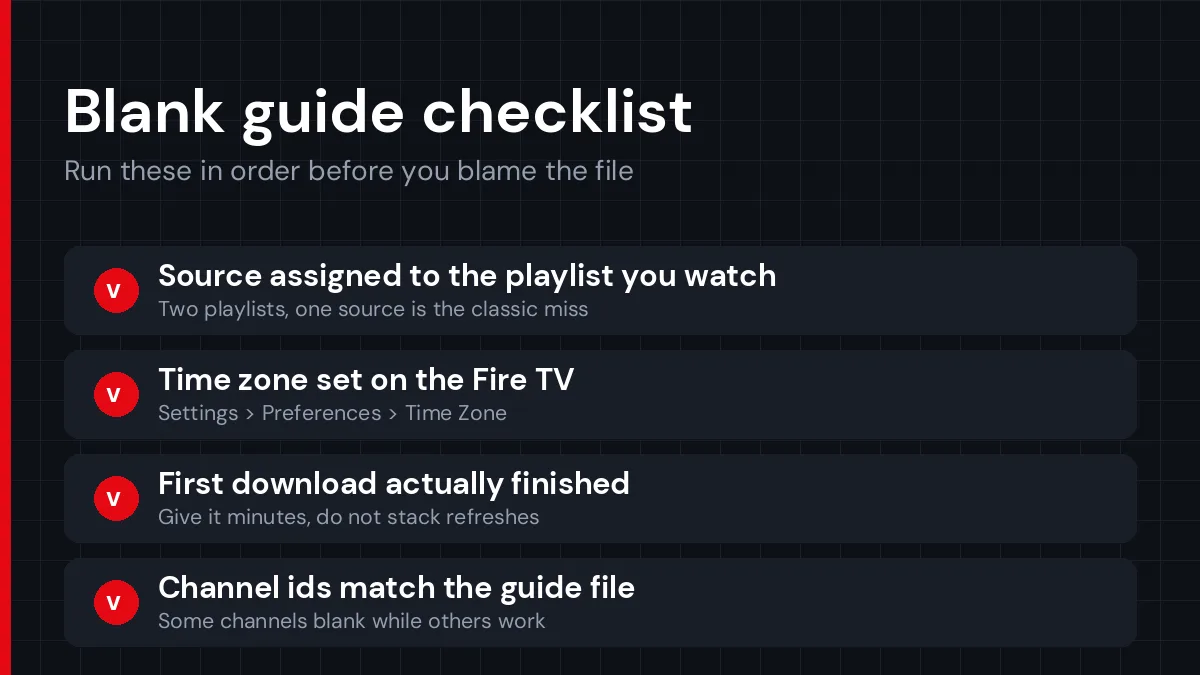
Most IPTV EPG setup on Firestick complaints come in three shapes. Empty everywhere is a source problem. Full but shifted by hours is a clock problem. Fine on most channels and blank on a few is an id problem, and no amount of refreshing changes that.
| What you see | Likely cause | Fix |
|---|---|---|
| Empty on every channel | No source assigned, or a dead XMLTV link | Re-enter the URL, assign it to the playlist, force a refresh |
| Every show at the wrong hour | Device time zone or app offset | Settings, Preferences, Time Zone, then set the app offset to 0 |
| Some channels say no information | tvg-id mismatch between playlist and guide file | Ask your provider for the matching EPG, or map the channel by hand |
| Yesterday’s programs still listed | Stale cached guide data | Clear the EPG cache in the app, then update |
| App stalls or closes while loading | Large guide file on a 1 GB stick | Ask for the .gz version, close other apps, restart the stick |
| No guide and no channels | Playlist, subscription or network, not the EPG | Play a channel first; if streams are down the guide is a side issue |
One more that looks like an EPG fault and is not: the guide is correct, but the stream stutters when you jump to a channel that the grid says is live. That is bandwidth or server load, and we cover it in the guide on buffering during live football.
Why do only some channels have a guide?
Channel ids, almost always. Your provider builds the playlist and the guide file separately, so when a channel gets renamed on one side and not the other, the player has nothing to match it against. A TiViMate EPG source can be corrected per channel: open that channel settings screen and pick the right entry by hand.
Free public lists have the same problem on a larger scale. They are built for other people playlists, so a few big channels line up and the rest do not. Use your provider file as the main source and treat anything public as a patch for the gaps.
How do you keep the guide loading fast on a Firestick?
Use the compressed guide file if your provider offers one, update once a day, and keep free memory on the device. The HD and Lite sticks ship with 1 GB of RAM and 8 GB of storage, and a large guide can push them; the 4K Max has 2 GB and 16 GB and handles the same file without complaining.
Hourly refresh settings are the quiet killer here. Most program guides carry three to seven days of listings, so pulling the same file every hour buys you nothing and makes the app parse a big XML block again while you are trying to watch something. Once a day is plenty.
Restart the stick every week or so, clear the player’s cache when the grid starts behaving oddly, and delete apps you never open. If your playlist itself is the messy part, the M3U playlist guide for Firestick is the place to tidy it up.
Does the Fire TV Live tab show your guide?
No, and this catches people out. The Live tab on the Fire TV home screen lists channels from Amazon Appstore apps, and your IPTV player is not part of that system. Your Firestick TV guide lives inside the app you installed, so open the player and press the guide button on the remote.
Two guides, two places, and only one of them knows anything about your subscription. If you set the Fire TV Stick up for cable replacement apps first, the habit of checking the home screen is a hard one to break.
Asking Alexa what is on has the same limit. The remote searches Amazon listings, not your playlist, so the answer looks wrong even when your grid is perfect.
What if the EPG is still not working on Firestick?
Test the link outside the app. Paste the XMLTV URL into a phone browser: if a file downloads, the source is alive and the fault sits in the player or the channel ids. If the browser returns an error, the guide never had a chance, and only your provider can fix that.
A real guide file is heavy, usually several megabytes. When the download finishes instantly and weighs a few kilobytes, you have saved an error page, not a schedule. That one check separates a provider problem from an app problem faster than any setting you can change.
If the EPG URL checks out and the grid is still empty, add a second source in your player and point one channel at it. When the second source fills in, the first file is broken. When both stay blank, the fault is local: clear the cache, reinstall the app, and add the playlist again from scratch.
One thing worth trying before you escalate is a wired connection for the first download. A large XMLTV file over a weak signal can fail halfway and leave a half-filled grid that looks exactly like a broken source.
Still stuck? Send your provider something they can act on. A ticket that only says EPG not working on Firestick gets a slow reply. One that carries your username, the app and its version, the stick model, three channel names with no data, and a photo of the Firestick TV guide usually gets solved in a single round.
IPTV EPG setup on Firestick: quick answers to common questions
Do I need a separate EPG URL with Xtream Codes?
No. An Xtream Codes login carries your channels and your guide through the same API, so the player pulls both from the server URL, username and password you already entered. A separate XMLTV link is only needed when you connect with an M3U playlist instead of an Xtream login.
How long should the EPG take to load on a Firestick?
A few minutes on the first download, and less on later updates. The file holds several days of schedules for every channel in your package, so a 1 GB stick can sit on it for a while. Leave the app open and avoid forcing a second refresh on top of the first one.
Why does my Firestick guide show programs at the wrong time?
The data is fine and the conversion is wrong. XMLTV timestamps are converted to local time using the device clock, so a Firestick in the wrong zone shifts the entire grid by hours. Set Settings, Preferences, Time Zone correctly, then set the player’s own EPG offset back to zero.
Can I use TiViMate on the Fire TV Stick HD or 4K Select?
Not on the 2026 Fire TV Stick HD or the 4K Select. Both run Vega OS, which is Linux based and cannot install Android APK files, so sideloading is off the table on those models. You are limited to players in the Amazon Appstore. The Fire TV Stick 4K Max still runs Fire OS and accepts TiViMate.
How often should the EPG refresh?
Once a day is enough for almost everyone. Guides usually carry three to seven days of listings, so more frequent updates only cost bandwidth and processing time on the stick. Refresh by hand when the grid looks stale, or right after you change the time zone or switch playlists.
Can I use a free EPG source instead of my provider EPG?
You can, but expect gaps. Public XMLTV files are built for other playlists, so only channels whose ids happen to match will fill in. Ask your provider for their own EPG URL first, then keep a public source as a fallback for the handful of channels their file misses.
IPTV EPG setup on Firestick: what to check first
Nine times out of ten the guide is not broken. It is unassigned, unfinished, or an hour off. Check the login type, then the time zone, then give the first download the minutes it needs, and only then start blaming the file.
If you are still choosing an app or setting the stick up from scratch, the full Firestick IPTV setup guide covers installation, playback settings and the Wi-Fi side of things.
Test a full 7-day guide on your own Firestick before you pay for anything.
Start Your Free Trial