Just signed up and wondering how to setup IPTV without the headache? It is simpler than most people expect. In a few minutes, on the device you already own, you can be watching live channels and on-demand content in full HD. Setting up IPTV takes about five minutes once you know the order of the steps.
I have set this up on more devices than I can count, and the process is almost always the same four steps. This guide walks you through exactly how to setup IPTV on any device, what you need before you start, and how to fix the small issues that sometimes pop up. For deeper, device-by-device instructions, the full IPTV setup guide covers every screen.
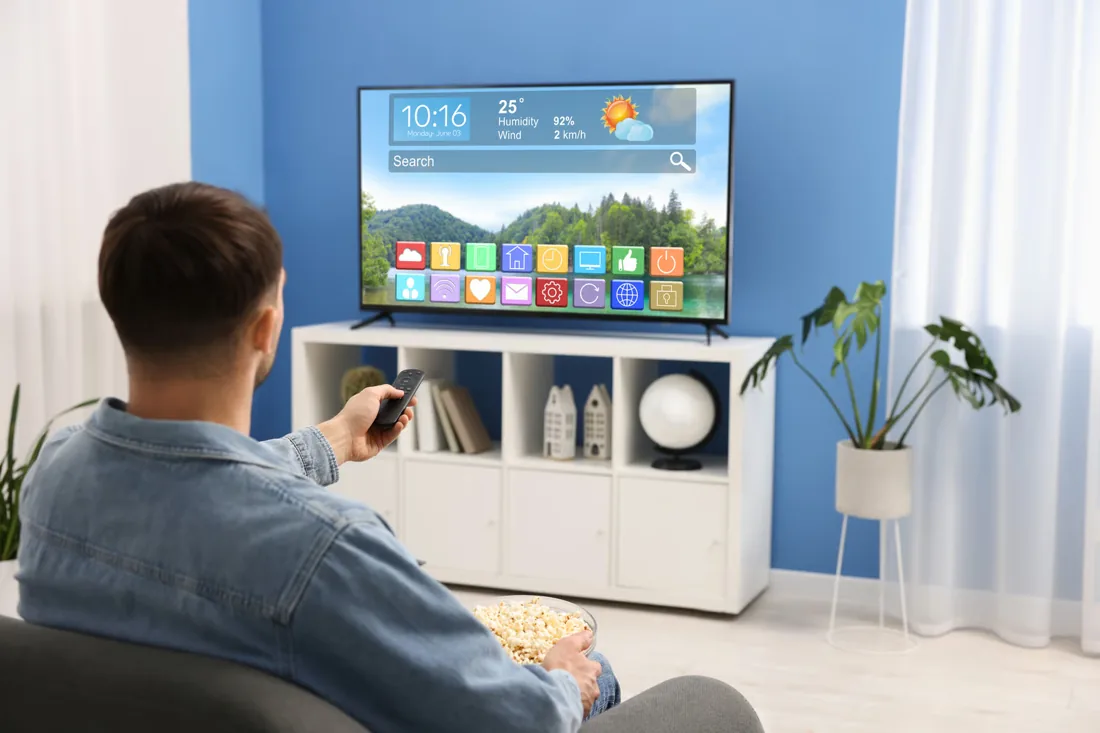
Quick Answer: To setup IPTV, install a compatible player app on your device (Smart TV, streaming stick, phone, or computer), then enter the login details or playlist link your provider sent you. The whole process takes about five minutes. Make sure you have a stable internet connection of at least 25 Mbps for smooth HD streaming.
What you need before you start
IPTV simply means television delivered over the internet rather than an aerial or satellite, as explained on internet-based TV streaming. Before you learn how to setup IPTV, it helps to have everything ready. Gathering these few things first makes the whole process smooth and avoids stopping halfway through.
- A compatible device: Smart TV, streaming stick, phone, tablet, or computer
- A stable internet connection, ideally 25 Mbps or more
- The login details or playlist link from your provider
- A player app, which is free to install on most devices
That is the whole list. Once you have these, the actual setup is quick and you will not need anything else.
How to setup IPTV step by step
These four steps are the same on almost every device. Learn them once and you can setup IPTV anywhere in minutes.
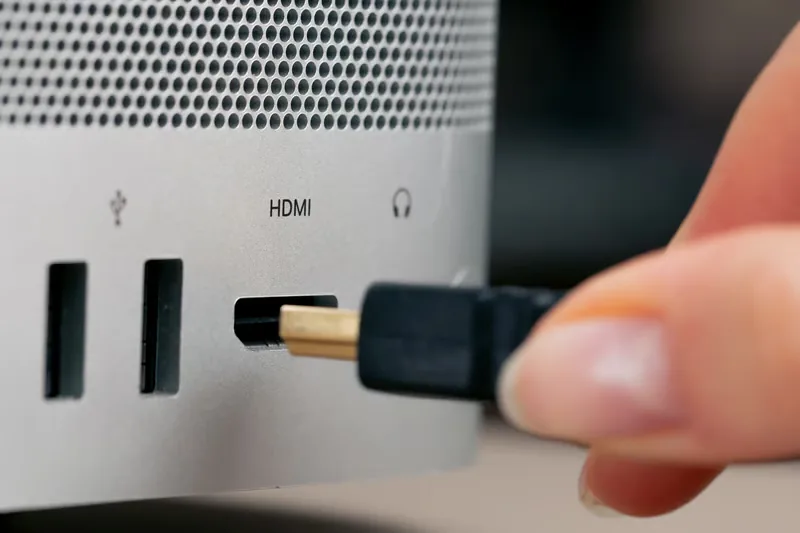
- Connect your deviceIf you are using a streaming stick or box, plug it into your TV’s HDMI port and switch to that input. Smart TV users can skip straight to the next step.
- Install a player appOpen your device’s app store, search for a compatible IPTV player, and install it. Most are free and take seconds to download.
- Enter your detailsOpen the app and enter the login or playlist link your provider sent you. This is the step that connects the app to your channels.
- Load and watchLet the app load the channel list, which takes a few seconds. Once it appears, pick a channel and you are done.
When people ask how to setup IPTV, most are surprised the answer fits in four short steps.
How to setup IPTV on different devices
The steps above work everywhere, though each device has its own small quirk. Here is the rundown for the most popular options.
| Device | How to setup |
|---|---|
| Smart TV | Install the player from the built-in app store, then add your details |
| Streaming stick | Plug into HDMI, install the player, then log in |
| Phone or tablet | Download the app from the store and enter your link |
| Computer | Use a browser player or a desktop app, then sign in |
It always comes down to the same two things: a player app and your provider details. If you want a device-by-device walkthrough, our IPTV setup guide covers each one in more detail.
Tips for the best picture quality
Knowing how to setup IPTV is one thing. Getting a picture that never stutters is another. A few small tweaks do most of the work here.
- Use a wired Ethernet connection for your main TV when possible
- Keep your streaming device close to the router on Wi-Fi
- Restart the device once after setup to clear the cache
- Pick HD over 4K if your connection is on the slower side
Fixing common setup problems
Sometimes a stream stutters or a channel will not load right after you setup IPTV. Most issues have a quick fix, so do not panic if something looks off at first.
- Buffering: check your speed and switch to a wired connection
- No channels: re-enter your playlist link, it may have a typo
- Black screen: restart the app and the device
- Login fails: confirm the details match what your provider sent
How long does it take to setup IPTV?
For most people, around five minutes. Installing the app is the longest part, and even that is quick on modern devices. Once the app has your details, the channel list loads almost instantly and you are ready to watch.
Do I need a special device to setup IPTV?
No. One of the best things about this technology is that it runs on hardware you already own. A Smart TV, a cheap streaming stick, or even your phone is enough to setup IPTV and start watching.
Is it hard to setup IPTV for beginners?
Not at all. If you can install an app and type in a login, you can do this. The four core steps are beginner-friendly, and a good provider sends you clear details that make the process even easier.
Why the setup is so simple now
A few years back, getting this working meant wrestling with confusing settings. Now the player apps handle that part for you. You paste in one link, and the app sorts everything into a tidy channel list.
That is what finally pushed a lot of people off traditional TV. No engineer visit, no dish on the roof, no two-year contract. And if you swap to a new device later, you just run through the same quick steps again.
- No technical knowledge required at any point
- The same process works across every device you own
- Changing or adding a device takes only minutes
- Everything updates automatically once you are connected
What to do after you setup IPTV
Once the channels load, two quick things are worth doing while you are still in the app.
Have a look around the layout so you know where the live channels, sport, and on-demand sections live. Most players let you save favourites, which pays off later. Then test it on a busy evening, when servers are under the most load. If the picture holds up then, it will hold up anytime.
Finally, keep the details your provider sent you somewhere safe. If you ever reset the device or add a new screen, you will need that same login to setup IPTV again. A good provider is happy to resend it, but having it handy saves a step.
Final thoughts on setting up IPTV
Learning how to setup IPTV takes minutes, not hours. Install a player, enter your details, and you are watching. Keep the connection stable, restart once after setup, and the picture stays smooth. Whatever device you own, thousands of channels are only a few steps away.
If your provider hands you a login instead of an app, our guide to Xtream Codes daily logins explains exactly what each field means.
If your player is on an external box rather than a smart TV app, check how to hook up IPTV through HDMI properly before troubleshooting anything else.
If you use an Amazon streaming stick, follow this Firestick with IPTV setup guide for player choices, Wi-Fi tuning, and buffering fixes.
Already set up and staring at four hundred channels you never watch? Run the list through an M3U playlist editor before you start changing player settings.
Ready to start watching? Get set up in minutes
Start Your Free Trial